Struggling with WiFi Issues? Transform Your Home WiFi
From weak signals to slow internet, our experts troubleshoot and resolve all your Wi-Fi problems.
Wi-Fi 5 Technology Gateways can be configured and managed via Web Interface or IP Address login Method. New Wi-Fi 6 and Wi-Fi 7 Technology Devices can be configured easily via the Mobile App. Upgrade your WiFi to WiFi 7 Technology Devices, to experience ultra-fast speeds 4.8 times faster than WiFi 6.
WiFi 7 technology offers higher network capacity and spectrum efficiency, more network-connected devices with extended range, and greater stability. Moreover, New technology Gateways, Extenders, and Networking devices can be managed and configured via the Mobile App itself.
How to set up a Wireless Router?
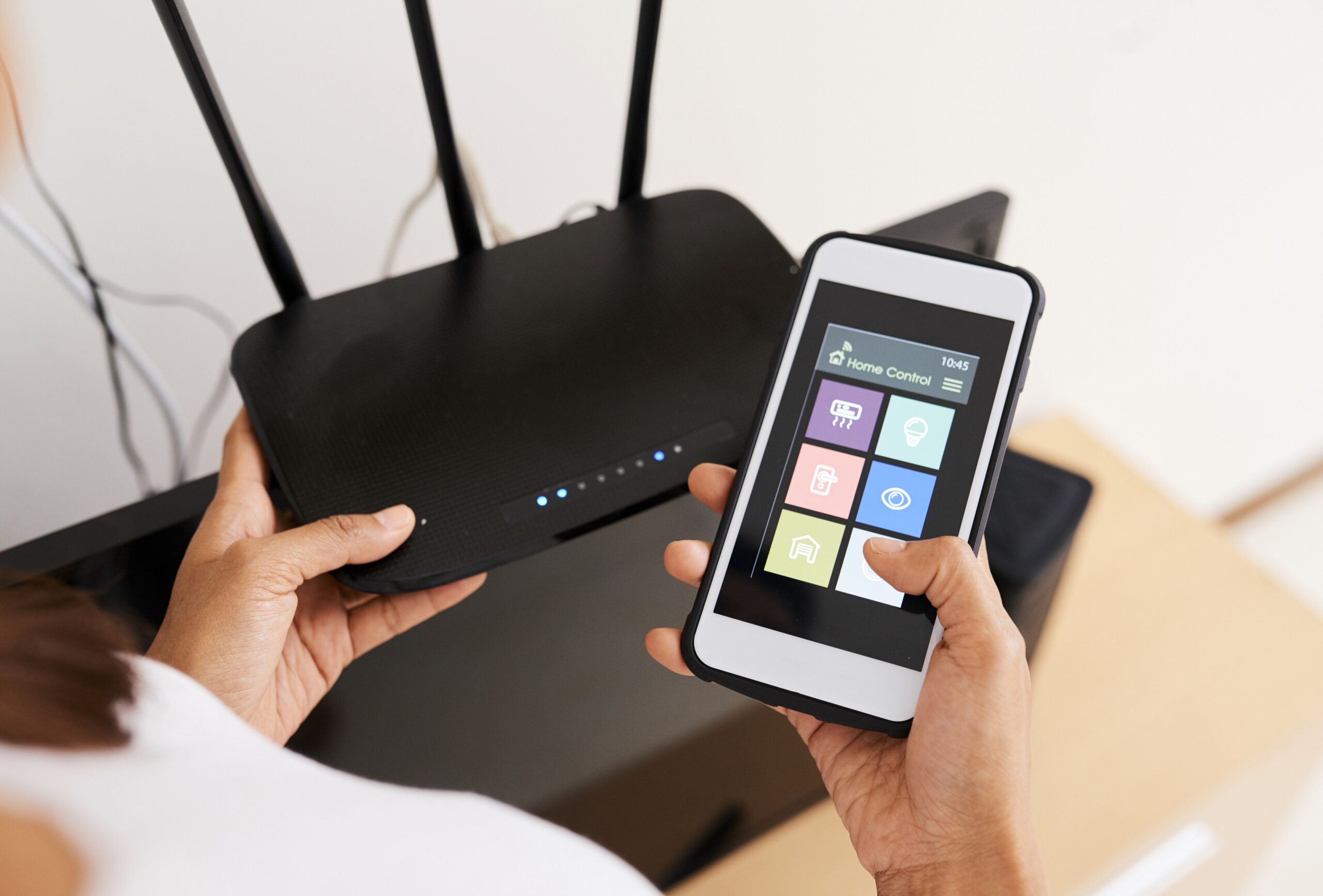
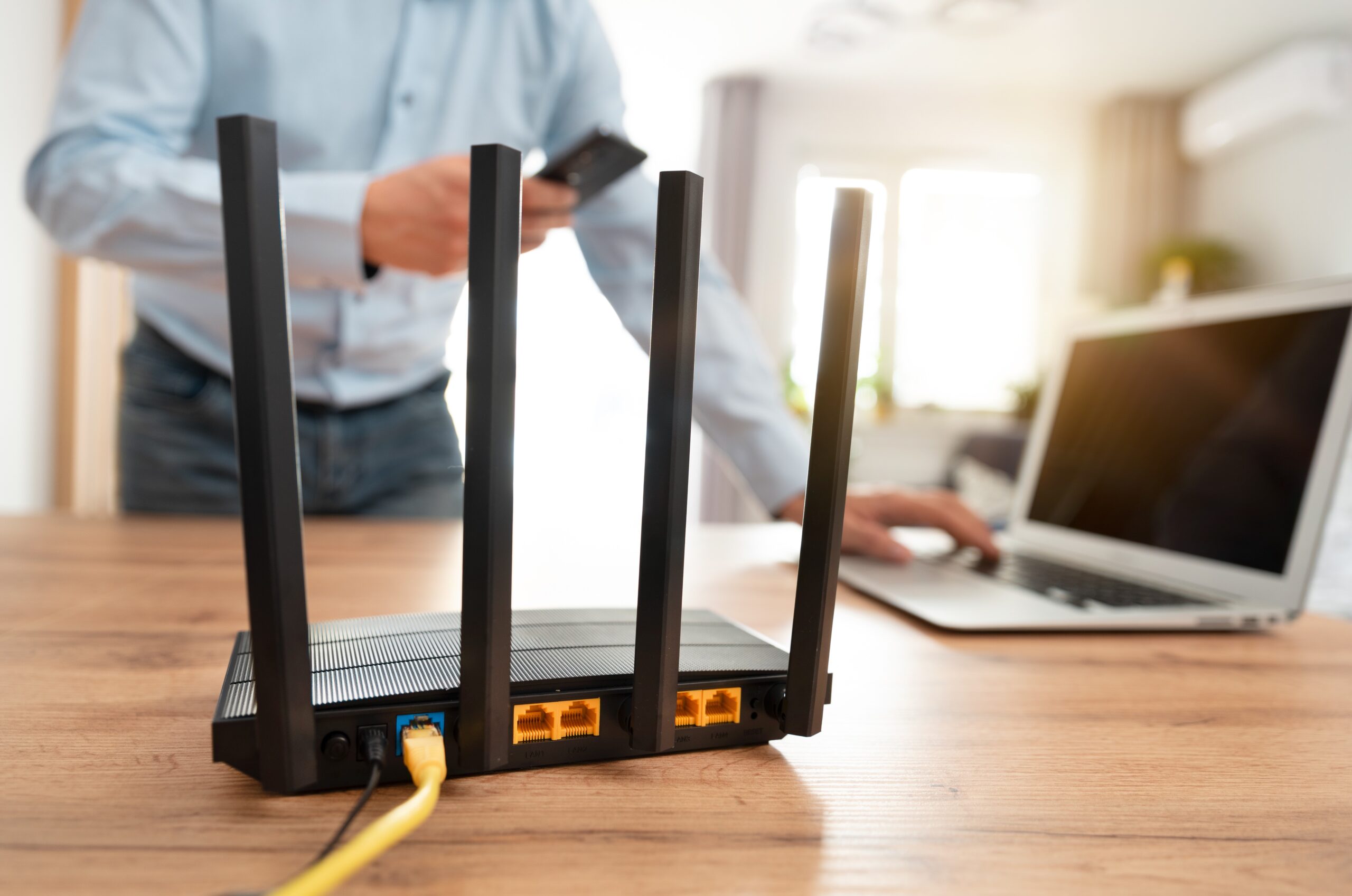
Setup of Wireless Router can be done both wired and wirelessly. To set up any WiFi Router, Users need to connect their PC/Laptop Wirelessly with the network name SSID of the router. The default SSID Network name and WiFi password are mentioned on the Router label itself. Alternatively, users can configure Wireless Router with an Ethernet cable.
Setup of Wi-Fi Router can be done via multiple Methods, the Web Browser Method using a Laptop/PC, or via Router Mobile App from a mobile device itself. It’s recommended to purchase a Wi-Fi 6 or Wi-Fi 7 Technology Router so that users can experience Lag-free Internet access, and 8k seamless streaming, and a smart gaming experience. Wi-Fi 6 Technology Modems/Gateways are also available so that users can get high-speed Internet access across all devices.
WiFi Setup Guide – Initial Setup
WiFi Router can connect multiple devices on the same Network wired or wirelessly. The router should be connected to the Internet Provider Modem to get Internet Access. Users can follow the steps mentioned below to configure the router with the Internet provider Modem:
1. Power on the New Router:
Connect the power adapter to the New Router, Disconnect old Router if any. Connect Ethernet Cable from Internet Provider Modem to WAN Internet Slot of the new router.
- Reboot Modem and New Router
Reboot the Internet Provider modem and the new router after connecting Ethernet Cable from Modem to the new Router. Wait for at least two minutes so that the lights are stable Green/White on the new Router and Modem.
Setup and Configuration
- Launch any web browser and navigate to the IP address of Router, Default IP address of Router is 192.168.1.1 or 192.168.0.1.
- Router Login and Quick Setup wizard will appear.
- Select Time Zone and Internet Connection Type. Most Internet Providers have a DHCP Connection type; in case you are using a PPPoE Connection, users can get the default username and password for Internet connection from the Internet Service.
- Configure Wireless Settings. Users can create a Custom Wi-Fi Network Name, and the Wireless Password should contain a minimum of 8 characters. Select Security type as WPA-2/WPA-3 in case of new WiFi 6 and WiFi 7 Technology Routers.
- Firmware update screen will appear. Update firmware of Router to the latest version to avoid any security vulnerabilities.
WiFi Extender Setup Guide
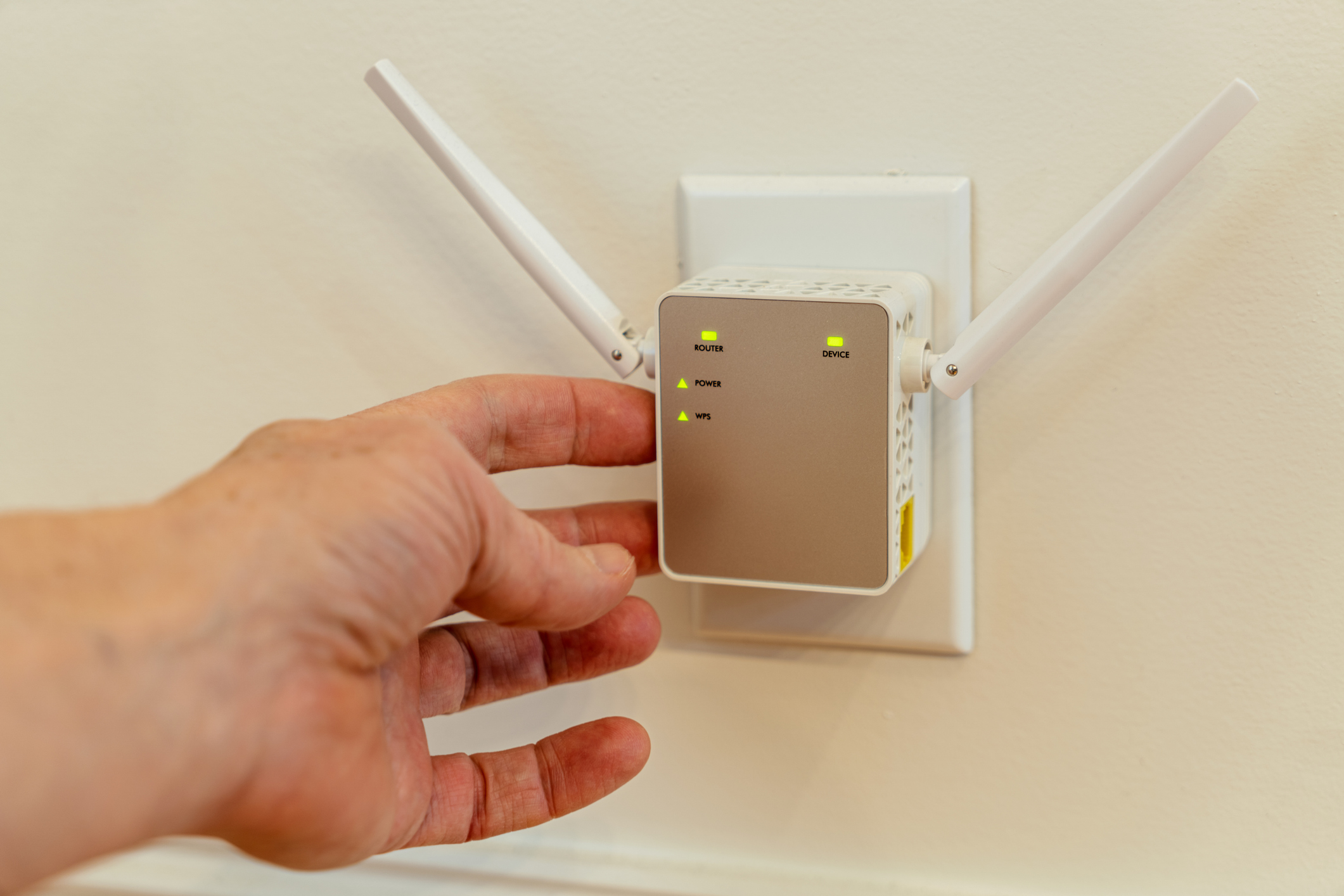
Wireless Extender eliminates dead Wi-Fi zones so that users can get Wireless connectivity throughout their home location. WiFi 6 and WiFi 7 Technology Extenders are well known these days for their excellent Coverage and high-speed internet access throughout all Networking devices. A WiFi Extender is basically a plug-and-play device. Setup of Extender can be done via WPS (WiFi Protected Setup) Push button or manual setup of Extender can be done via Web Browser Method. New technology Extenders can be configured via Router App.
METHOD 1: WPS (Wi-Fi Protected Setup) Extender Setup Process
- Connect Range Extender to the power supply close to your Main Host Router.
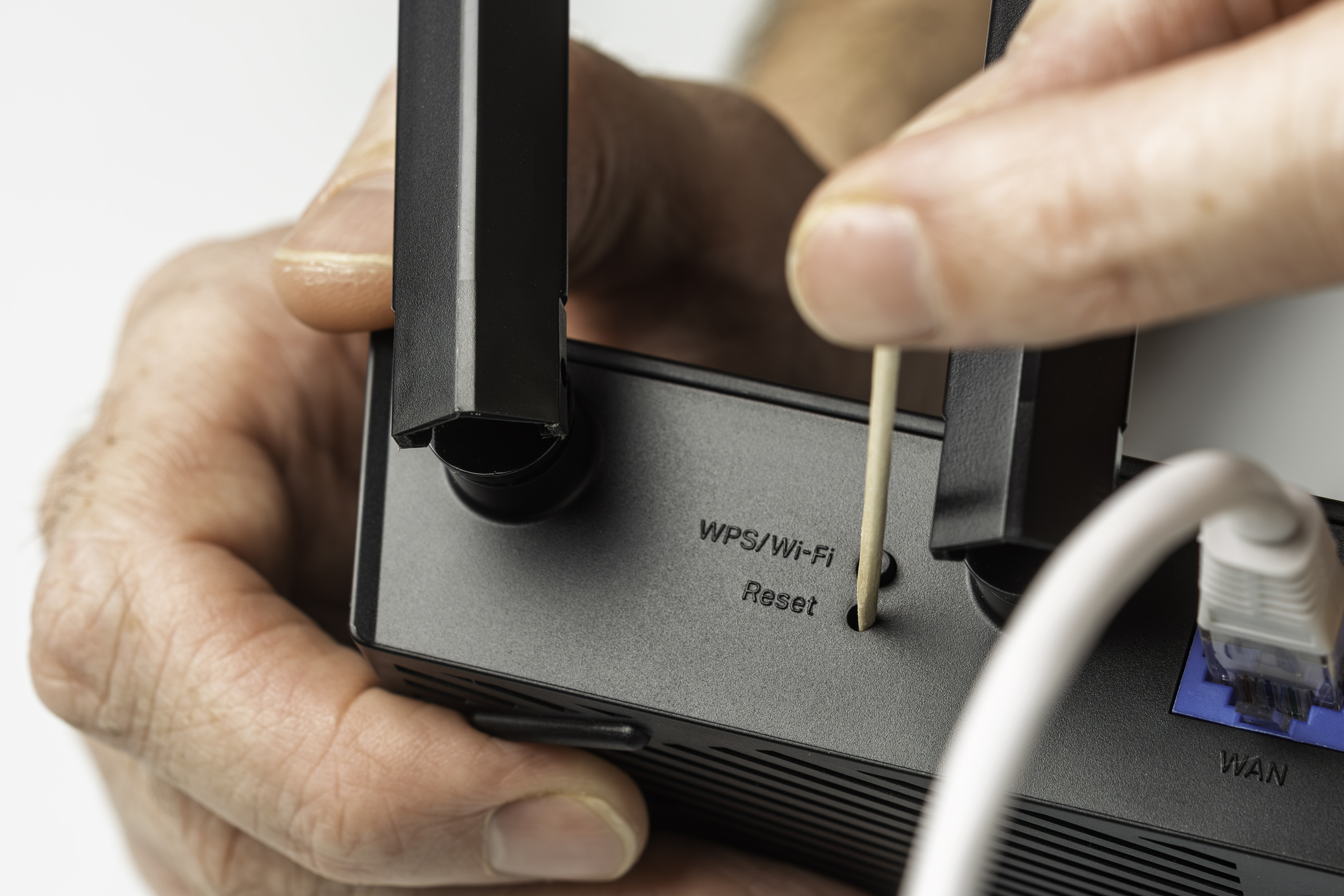
- Locate WPS Button on Extender, Press and hold WPS on Extender and Main Host Router for three seconds.
- WPS Button is like a Padlock button, available on Wi-Fi Router and Range Extender.
- Range Extender will sync with Router Wireless Settings.
- Relocate Range Extender to Different Location, Extender should be ideally placed in between the main home router and the Dead WiFi Zone area.
Extender settings can be accessed by IP address Method. Extender IP address can be found on the Router login Dashboard page of the main Host Router.
Method 2: Range Extender Setup via Browser Method
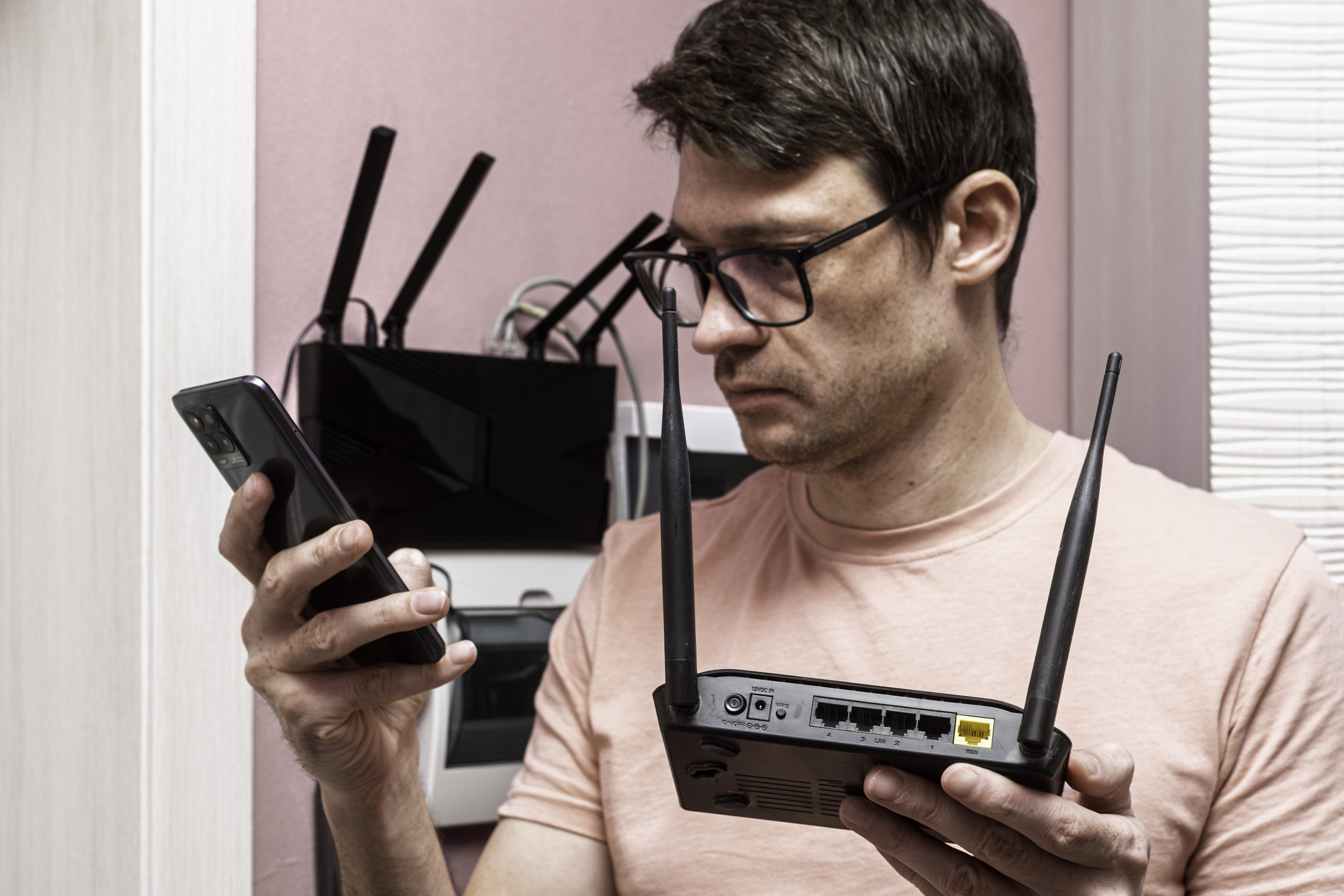
Range Extender can be configured via Web browser method.
- Connect Extender to the power source close to the main Host Router.
- Connect your Networking device Computer/Mobile Phone with Wi-Fi Network SSID of Extender.
- Use the IP address to access the Extender interface page.
- Extender Dashboard screen will appear.
- Select Range Extender Mode and then create Admin username and password for Extender.
- Range Extender will scan for nearby Access Points in Range.
- Select the main Host Router WiFi Network name and enter the WiFi password of the main Host Router.
- Configure Range Extender Network name SSID and Password, then click on Next option.
- Extender will reboot once to apply the changes.
- Relocate Range Extender in between the main host router and Wi-Fi Dead Zones.
Wi-Fi Setup using Mobile App
Setup of new advanced Nighthawk Routers can be done via mobile app itself. To set up any Wi-Fi 6 or Wi-Fi 7 Technology Nighthawk Router or Extender, users can use the Nighthawk mobile app. Users can monitor Router Settings, Device management, Guest Network Setup, Firmware update and many other features can be accessed via Mobile app itself.
Users can download Nighthawk Wi-Fi app from the Apple App Store for iOS Apple devices or Google Play Store for Android Devices.
Nighthawk mobile app is available for mobile devices only, in case of Windows or Mac Laptop/PC platform users, can usethe Genie app or the default IP address of Router to access Router interface page.
Wi-Fi 7 Technology Router setup using Mobile App:
- Connect Wireless Router to Power Supply.
- Download Nighthawk Wi-Fi App from Google Play store or Apple App Store in case of Apple iOS devices.
- Connect Ethernet cable from new Router WAN Internet slot to Internet service provider Modem.
- Launch App, and Connect your mobile devices with Router Network name SSID and Network key passphrase ( WiFi Password) as mentioned on Router.
- Create a new Router ID, Click Add a Device option and Select Router option.
- Create Administrative login password, this admin password can be used in future to access the Router interface page.
- Select your Internet connection type, mostly, the connection type is DHCP.
- Create new Wi-Fi Network Name and Wireless Password for your Router, users can select smart connect option for seamless wireless connections.
- Connect your device with the new Wi-Fi Name and Wireless password.
- Relaunch the app again, and check for Firmware updates if any. Make sure Router Firmware is up to date to avoid any security vulnerabilities, if any and for Enhanced performance.
How to Connect Printer with Wireless Network using WPS?
New Technology Printers can be connected with Router using WPS feature. To Connect Printer with Network Router users can follow below mentioned steps:
- Make sure the printer is turned ON and in close range with your main Host Wireless Router.
- On the Printer Screen, navigate to Settings or Set up option.
- Select Wireless Option, Then navigate to Wireless Protected Setup, Push button prompt.
- Press and Hold WPS Button on Router itself for three seconds, Select Ok option on WPS menu on printer screen.
- The WiFi Host Router will communicate with the printer, and the user will get a success message on the printer screen.
- Users can print a Network information page, and the Printer new IP address as assigned by Router will be displayed on the Printer screen.
- Navigate to Settings and Devices and printers option on your Windows PC/laptop.
- Select add a printer option, and Add your Network Printer.
Home WiFi Configuration
Transfor Your WiFi Network ! We have the tools, expertise and experience to do the job.
Reveal WiFi Network Issues
Our WiFi survey report clearly reveals strenghts,weaknesses, and competition analysis for airtime and neighboring networks.

Home WiFi Installation Guide
Guaranteed Peace of Mind with Expert Wifi Setup, Setup new WiFi equipment with mobile app itself, New Internet Modem,Connectivity and Slow Speed.
Expert Wi-Fi Setup | WiFi & Network Service
We make the most suitable and fact based recommendations on how to improve the Wi-Fi Network. Next level WiFi Tailored for you

Weak Signal at Home? - Home WiFi Upgrade.
Are you working from home and struggling with disconnecting Internet, Frequent disconnections and Slow WiFi Speeds, We can assist you in resolving these issues.

Get Quick & Professional WiFi & Network Installation
Easy guide to Connect a new equipment, finding trouble on Network, and even extending WiFi coverage to eliminate dead WiFi zone Areas.
New Mesh Extender and Network Router Setup
Most WiFi and Extender issues pertain to Router Access, initial WiFi Configuration and Extender Placement, Our Experts can guide you through all Networking issues with ease and patience.
Why my WiFi Keeps Disconnecting?
WiFi disconnection issue might be due to pending Firmware update, Channel Interference issues or IP Misconfiguration. It’s is recommended to do Device reset and Reconfigure WiFi Network if issue persists.
Unable to Access Router Interface Page
In case you are unable to login to Router or Gateway Interface page, Make sure your Device is connected with it wired or wirelessly. Try to access default login page using IP address or from a different browser or device.
Configure Range Extender using WPS Process
Range Extender can be configured with main host Router using WPS Push button setup process. In new advanced WiFi 7 technology Routers, WPS is disabled for Security reasons, in such case, users can configure Range extender using Web Browser Method.
How to configure WiFi Router without Mobile App
Users can configure new Wi-Fi 6 or Wi-Fi 7 technology Router using Web browser method, by logging to Router interface page using Router default IP address, in case they do not want to use Router Mobile App.